Setting Up Automatic Penny Adjustment
Since the production of the penny has ceased, businesses are encouraged to round all cash transactions to the nearest nickel.
These instructions show you how to configure EPASS to do this for you automatically during payment. Once setup is complete, EPASS will round invoice or AR cash payment lines to the nearest nickel.
| Total Invoice Amount | Rounding | Cash Payment Line |
|---|---|---|
| $1.01 or $1.02 | Round down | $1.00 |
| $1.03 or $1.04 | Round up | $1.05 |
| $1.06 or $1.07 | Round down | $1.05 |
| $1.08 or $1.09 | Round up | $1.10 |
These instructions apply to both US and Canadian clients.
Set Up
To set up automatic penny adjustments, you'll need to:
- Add a penny adjustment Misc code.
- Add the Misc code to the Invoicing Variables.
- Activate the penny adjustment on cash Payment Types.
Adding a Penny Adjustment Misc Code
-
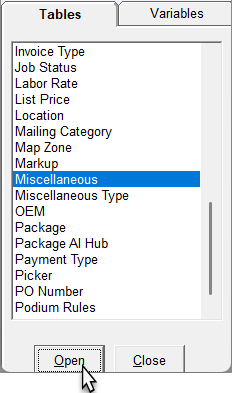
Go to Tools > System Maintenance. On the Tables tab, click Miscellaneous, and then click Open.
-
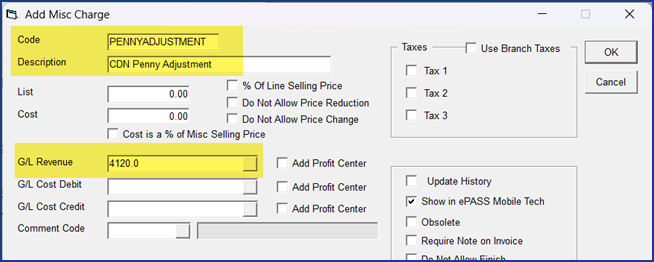
Click Add. The Add Misc Charge window opens.
-
In the Code field, enter
PENNYADJUSTMENT. In the Description field enterPenny Adjustmentor something similar. -
Enter the G/L Revenue code.
-
Click OK to close the Add Misc Charge window.
Adding the Misc Code to Invoicing Variables
-
Go to Tools > System Maintenance. Click the Variables tab, click Invoicing, and then click Open.

-
On the General tab, in the Penny Adjustment Misc Code dropdown, select the
PENNYADJUSTMENTcode.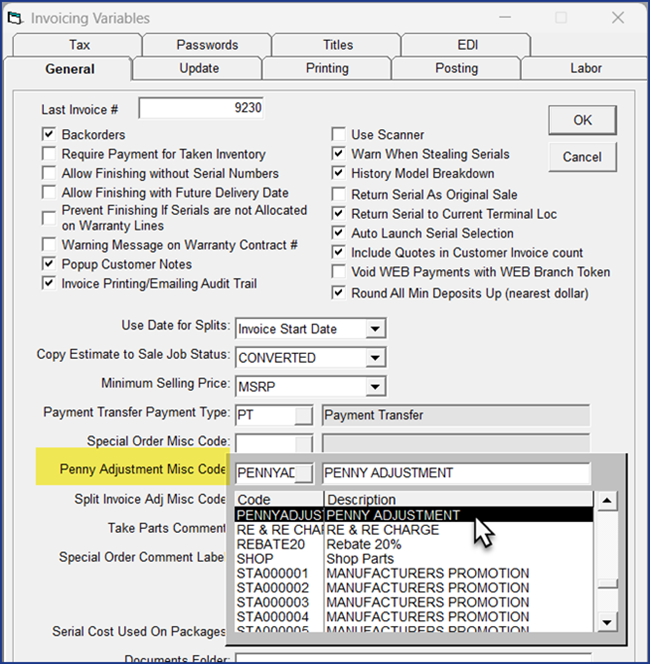
-
Click OK to close the Invoicing Variables window.
Selecting Penny Adjustment on Cash Payment Types
You should only activate penny adjustment on CASH payment types. Credit card and digital payment transactions should still reflect cent-level pricing.
-
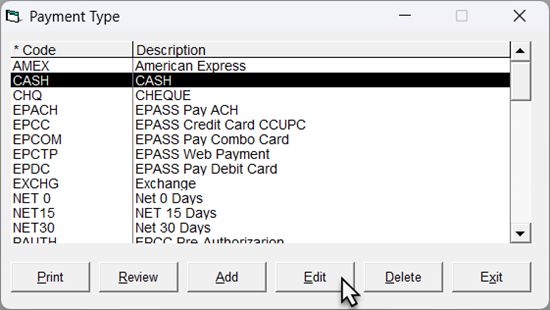
Go to Tools > System Maintenance. On the Tables tab, click Payment Type, and then click Open.
-
Select your cash Payment Type from the list, and then click Edit.
-
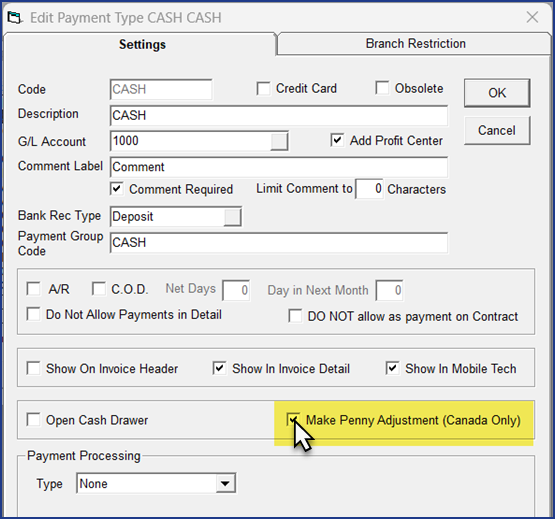
On the Settings tab, select the Make Penny Adjustment checkbox.
 US Clients
Ignore the
Canada Onlylabel as this setting works for US clients as well. -
Click OK to close the Edit Payment Type window.
-
If necessary, repeat steps 2–4 for additional cash Payment Types.
Finishing Up
Restart EPASS for the settings to take effect. Now when a payment line is added to an invoice or AR Payment using the cash Payment Types, EPASS will automatically round the amount to the nearest nickel.
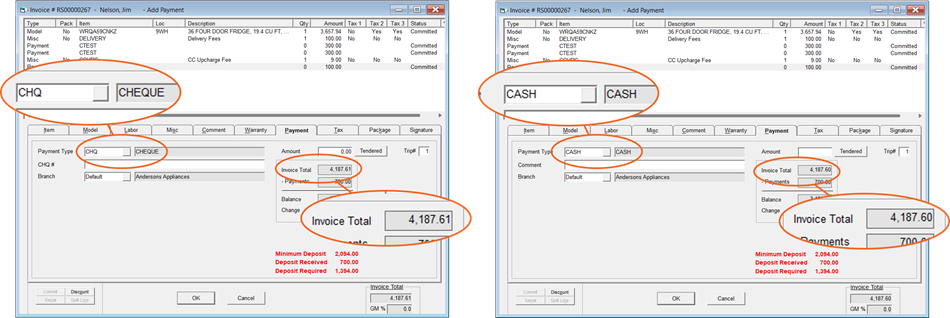
In this example, when a cheque Payment Type is used, the invoice total ends in .61 cents. When the cash Payment Type is used, EPASS automatically rounds the invoice total to .60 cents.
See Also
January 5, 2026